

This might sound insignificant, but this blog is actually about something serious that can affect your brand. Nobody opens Google hoping to be handed a chatbot summary.
You type a simple query, and a block of generated text pushes the results you actually wanted halfway down the page.
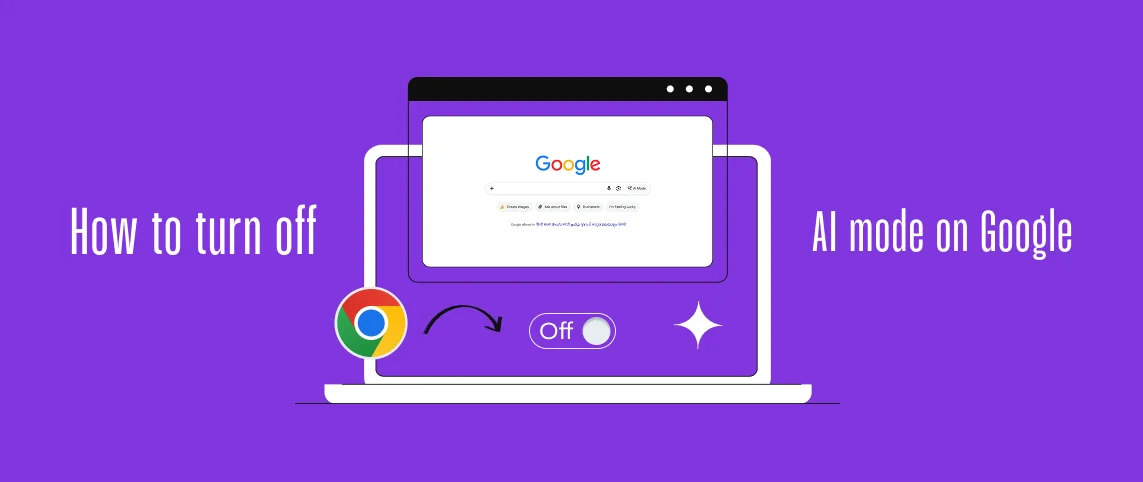
So you do what everyone does. You search for how to turn off AI mode on Google. But is that even possible?
Here's the short answer: you can't switch it off completely. But you can still get the benefits of switching it off, and I'll discuss how in this blog.
Before we start, just a heads-up. Are you sure you want to turn off AI mode on Google? At Blogger Outreach, our clients are websites, brands, and vendors that manage client accounts and try to get featured in AI Overviews.
However, Google selects only the most useful content to be featured there. Therefore, the AI mode is certainly not useless.
Is AI Mode The Same Thing As AI Overviews?
Although we focused on AI Overviews, they aren't the same as AI mode. And let’s not forget our main question: how to turn off AI mode on Google.
In reality, most people are confused because they can't tell AI Overviews apart from AI mode on Google.
| AI Overviews | AI Mode on Google |
| You can spot the AI Overview section at the top of Google’s first page of query results. It sums up the answer to your query. You can think of it as a direct, brief, and exact answer to what you asked Google. | AI mode is Google’s own answer engine. Here you don’t get third-party search results. Google scrapes search results to provide an exact answer in a conversational format that isn't available in search. |
Is This Knowledge Really Important For Me?
How will you get quick, accurate answers to your search queries if you don’t understand how Google's AI mode and AI Overview work?
According to a Google blog, these two modes drive higher engagement and even generate higher-quality links.
Why Are So Many People Trying To Get Rid Of It?
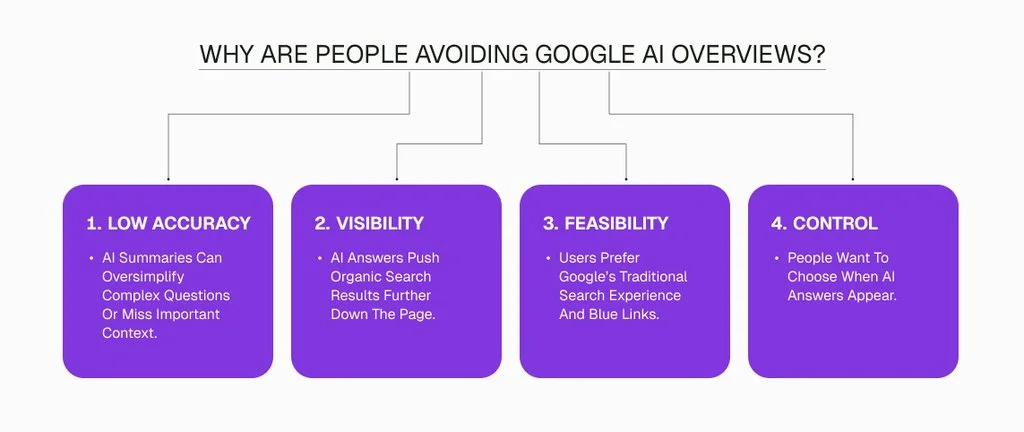
People avoid AI answers for many reasons. However, average search outcomes suggest 4 key issues people cannot ignore.
- Low accuracy: Often, the AI overview oversimplifies things and offers a conclusive answer to queries that have no direct answer in third-party Google search results.
- Visibility: As the AI box appears at the top, people cannot see the organic results right away. That’s why many people who want to use Google traditionally, and keep AEO to Claude and ChatGPT, think that way.
- Feasibility: People are used to Google’s UI. They still think the first 10 blue links Google shows are the only important things on the page.
- Control: Often people admit that it’s important, but they dont want an AI overview against every search query. That’s where they want control: when it should appear and when it shouldn't.
What Does Google Actually Let You Turn Off?
This is where most articles get a little too optimistic, so let me keep it real.
Google's own help page treats AI Overviews as part of Search, in the same way as knowledge panels, and says they can't be turned off.
There is a Search Labs experiment called 'AI Overviews and more', and if you see it, you can toggle it off. But Google also notes that doing so will not disable all AI Overviews.
And if you don't see the Labs icon at all, you don't have that experiment to begin with.
There is one real, official control on the Chrome side. If the AI Mode button in your address bar bothers you, right-click the address bar and unselect 'Always show AI Mode'.
That hides the shortcut in Chrome. It does not remove AI Mode from Google Search itself.
So, no universal off switch. What we have is a set of workarounds. Some are quick, some last longer, and a few break whenever Google changes its page layout.
Five Ways To Get Classic Results Back, Ranked By How Long They Last
Here's the quick comparison before we get into the steps.
| Method | Effort | How long it lasts | The catch |
| Web filter | None | One search | You have to click it every time |
| Custom search engine (udm=14) | 2 minutes | Permanent in your browser | Only works for searches typed in the address bar |
| Adding AI to your query | None | One search | Unofficial, and can hide useful pages that mention AI |
| Browser extension | 1 minute | Until Google changes its layout | Often hides the box visually, and can break silently |
| Another search engine | Low | Permanent | You lose Google's index and Google-only features |
1. Use The Web Filter
Run your search, then look at the tabs under the search box. Click 'Web'. You get a plain list of links with no AI summary on top. It is the official way to see classic results, and it takes one click. If it isn't visible, check the 'More' menu.
2. Make The Web Filter Your Default In Chrome
This is the one I would set up first if you search all day.
- Open Chrome settings and find the search engine section, then choose 'Manage search engines and site search'.
- Add a new search engine and give it a name like Google Web Only.
- In the URL field, paste: https://www.google.com/search?q=%s&udm=14
- Save it and set it as your default.
The udm=14 part is what forces the Web view. Menu names change slightly between Chrome versions, so don't panic if your screen looks a bit different.
One important limit. This only works for searches you type into the address bar. If you go to google.com and type in the page's own search box, the AI Overview can still show up. It also doesn't carry over into AI Mode, which is a separate interface.
3. Add AI To Your Search
Type your query and add -ai at the end, with no space after the minus sign. Many people find it keeps the AI summary away.
But I'll be honest here. It's an unofficial trick, not a Google feature. It doesn't work every time, and it also filters out pages that mention AI, which hurts when you're actually researching AI. Use it as a quick fix, not a system.
4. Try A Browser Extension
Extensions such as Hide Google AI Overviews and Bye Bye, Google AI hide the summary (and in some cases the AI Mode button) on desktop browsers. They are easy to install and easy to remove.
Two things to keep in mind. They hide the box on your screen, but Google still generates it. And they depend on how the page is built, so a layout update can break them until the developer catches up. Review what an extension is allowed to access before you approve it.
5. Switch Your Search Engine Altogether
Privacy-focused engines such as DuckDuckGo or Brave offer a very different experience.
It's the cleanest way to avoid Google's AI layer, but you give up Google's index and a few Google-only features. For some people, that trade is worth it.
What About Your Phone?
Mobile is where things get messy.
No phone-wide setting turns off Google's AI. On iPhone, mobile Safari doesn't let you edit a search engine URL template, so the udm=14 trick is off the table there.
The Web filter still works on both iOS and Android, and some third-party shortcuts such as udm14.com or tenbluelinks.org open Google in Web-only mode.
Android users can also check Search Labs in the Google app if the toggle is available for their account.
In short, expect to click the Web filter more often on mobile.
Is Everything Called Google AI Really AI Mode?
No, and this trips people up.
AI Mode in Search, Gemini in Chrome, Gmail's Smart Compose, and Google Assistant are all different things with different controls. Hiding one doesn't touch the others.
So if the Ask Gemini button in Chrome is what annoys you, unpin it from the top of the browser.
If it's those auto-written email suggestions, they live in Gmail's settings under Smart Compose and Smart Reply. If you're worried about personalization, check your Google Account activity controls.
My advice? Decide which feature is actually bothering you before you start toggling things. It saves a lot of frustration.
Why Hiding AI Mode Won't Fix The Bigger Problem
Okay, enough about toggles. Let's talk about what you can't switch off.
You can hide AI answers from your own screen. You cannot hide them from your customers. Some of them are reading those answers right now and deciding which brands get mentioned.
For a regular user, the question is how to turn off AI mode on Google. For a brand, the question flips. How do you show up inside it?
This is not a trick question. Google's own documentation on AI features explains that these experiences draw on pages from the Search index.
So what can you conclude? To improve your visibility, you still have to rely on your content. It should be relevant, useful, and attract editorial mentions from credible sources.
Most importantly, it should link to trusted publishers with high online authority. That’s where Blogger Outreach helps. Contact us today.
Where Does Blogger Outreach Fit Into All This?
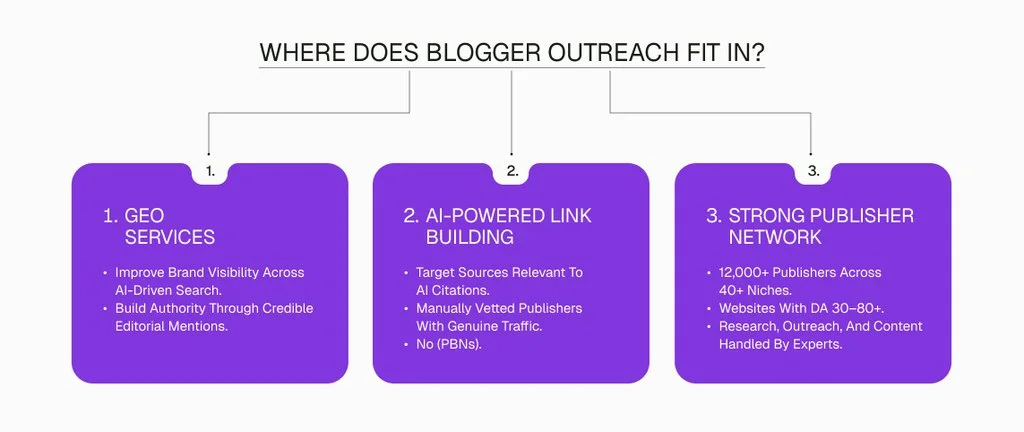
Two services matter most here.
GEO Services.
Our GEO services focus on Generative Engine Optimization. In plain words, that means placing your brand on authoritative editorial sources, so AI-driven results have something credible to pull from when your topic comes up.
AI Powered Link Building.
AI-powered link building focuses on placements on the kinds of sources that tools like ChatGPT, Perplexity, and Google AI Overviews tend to cite. Every site in our network is manually vetted for genuine traffic and editorial standards, and we do not work with PBNs.
Behind both services sits a network of 12,000+ publishers, with DA 30 to 80+ sites across 40+ niches. So you can state your requirements, and our team does the searching, outreach, and content, instead of you doing it all in-house.
Now, let me be careful here. No agency, including us, can guarantee that an AI answer will mention your brand. Nobody controls that. What a good provider can do is put you in front of the right sources, with the right context, in a way that makes you easier to cite. That's the honest promise.
If you want the traditional foundation as well, our guest posting services and link building services cover the standard editorial placements that classic search still runs on.
Does Building Authority Really Show Up In The Numbers?
Here's one example. In our search generative experience case study, Engleish.com, an English grammar and language learning site, grew from 10,807 to 36,841 monthly organic visitors. That's about 241% growth. The site now reports a DA of 55 and a DR of 61.
The campaign focused on relevant publishers, contextual in-content placements, and natural anchor text. It was not built around chasing the biggest domain number.
One fair warning. That's a reported result from a single campaign. It isn't a forecast for every client, and it doesn't prove that links alone caused the whole increase. But it does show what happens when you plan authority-building around a clear niche instead of link count.
How Do You Decide What To Do First?
Here is a quick scenario. A small in-house team has one SEO person, a modest budget, and a growing worry that competitors keep appearing in AI answers. Should they buy fifty random links? Of course not.
Here Is A Smarter Sequence You Should Follow
Step one: Find out where you stand. Our free SEO audit covers the DR gap against your top competitors, toxic link detection, and an AI visibility score, with results in 48 hours.
Step two: Choose your target pages. Pick the few pages that bring in revenue, not the ones that look good on a report.
Step three: Pick relevant publishers first, strong metrics second. A well-matched page beats a random high-authority one.
Step four: Track what matters. Organic traffic to target pages, keyword visibility, qualified referral visits, leads, and conversions. Not just the number of links delivered.
Switch It Off For Yourself, Show Up In It For Everyone Else
Is the AI mode really getting in your way? If you actually want to turn off AI mode on Google, use a better web filter.
Once you've set up the web filter, you can change your search engine settings.
But remember, you cannot permanently turn off AI mode on Google. So if you keep searching how to turn off AI mode on Google, you will never get accurate results on the search platform or the answer engine.
However, for growing brands, small agencies, and link selling brokers, I have a suggestion. You cannot prevent your audience from checking out AI answers. So, start thinking about how your brand name can appear in AI answers.
Personally, you can still turn off the AI overview. But if you want to be featured there, contact Blogger Outreach today and book a Free Demo.